Nothing is more frustrating than an IPTV stream buffering right as a decisive goal is scored or during a pay-per-view main card. In this definitive guide, our network engineers breakdown the root causes of IPTV lag and show you how to eliminate freezing for good.
Step 1: Check If Your ISP Is Throttling IPTV Traffic
Many Internet Service Providers (ISPs) actively monitor heavy UDP and HLS video streaming traffic during peak evening hours or major top leagues broadcasts. When traffic surges, they apply traffic shaping to throttle bandwidth down to sub-10 Mbps levels.
The Fix: Run a speed test on fast.com. If your general internet speed is 100+ Mbps but your IPTV stream stutters, your ISP is likely throttling media packets. Using a high-speed VPN or switching to an reliable IPTV subscription that scrambles stream signatures immediately bypasses ISP packet inspection.
Step 2: Change to Fast Public DNS Servers (1.1.1.1)
Default ISP DNS servers are slow and frequently block or throttle IPTV CDN edge domains. Switching your DNS resolver significantly decreases stream startup latency and prevents connection drops.
Cloudflare DNS (Recommended)
Fastest global resolution speeds
Primary: 1.1.1.1
Secondary: 1.0.0.1
Google Public DNS
High redundancy & reliability
Primary: 8.8.8.8
Secondary: 8.8.4.4
Step 3: Adjust Buffer Size in Your IPTV Player App
If your buffer is set to "None" or "Small" (0–1 second), any micro-hiccup in packet delivery causes an instant frame freeze. By slightly increasing buffer headroom, your player will maintain a smooth cache:
- Open your player's settings and look for Buffer Size or Cache Size.
- Move it up one step at a time (for example from Small to Medium), then test a live channel for a few minutes.
- Avoid the largest setting on older Firesticks and other low-memory devices, because it can cause slow channel changes.
Step 4: Use Ethernet Cable or 5 GHz Wi-Fi Instead of 2.4 GHz
The 2.4 GHz Wi-Fi frequency band is plagued by interference from microwave ovens, bluetooth devices, and neighboring routers. For stable 4K 60 FPS live streaming:
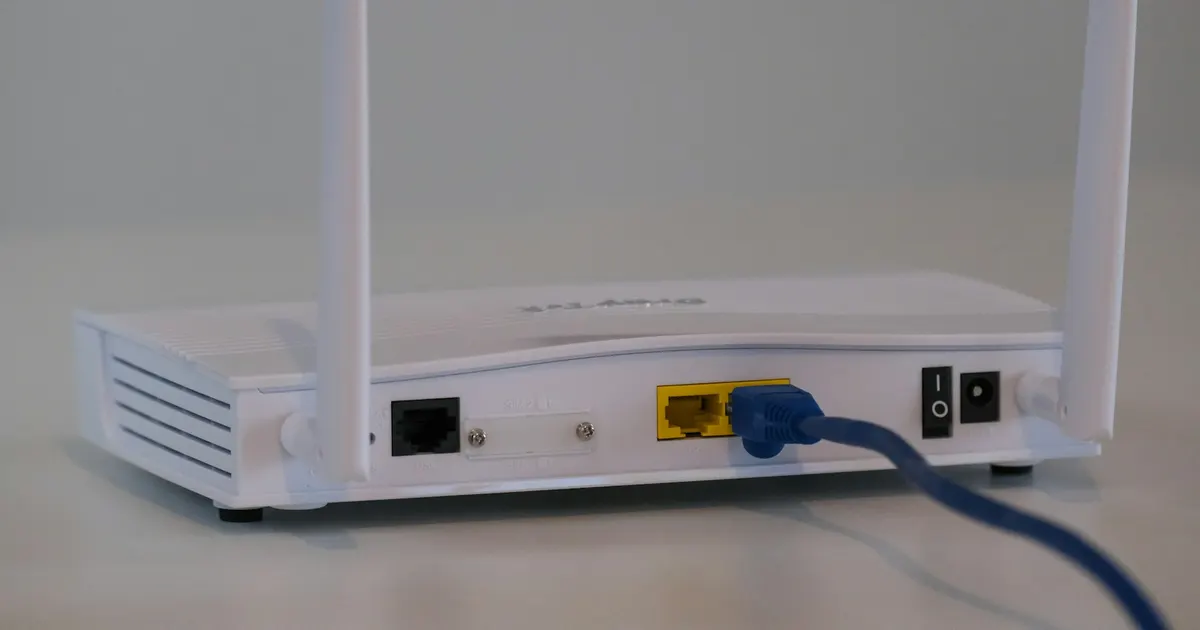
- Connect your Firestick or Smart TV via a direct Ethernet cable using an OTG adapter.
- If using Wi-Fi, ensure you connect to your router's 5 GHz frequency band, positioned within 15–20 feet without solid concrete obstructions.
Step 5: Clear Cache on Firestick, Smart TV, or Android Box
Over months of streaming, temporary EPG guides and cached video chunks accumulate and congest device RAM. On Amazon Firestick:
- Go to Settings → Applications → Manage Installed Applications.
- Select Clear Cache (do NOT click "Clear Data" or credentials will be wiped).
- Restart your Firestick by holding Select + Play/Pause for 5 seconds.
Step 6: Disable Heavy Background Apps & VPN Overhead
Low-spec streaming sticks have limited CPU cores. Close unused background apps (a streaming service, YouTube, Spotify) using a task manager utility. If using a VPN, ensure you select a server in the same country as your streaming content with the WireGuard protocol enabled for lowest latency.
Step 7: Choose a Premium IPTV Provider with optimized
Ultimately, no local tweak will fix a server that is overloaded. Budget IPTV providers squeeze 5,000 customers onto single unmetered virtual servers that collapse when football matches start.
At view tv iptv, we employ proprietary distributed load balancing with dedicated 10 Gbps uplinks and an enterprise reliable uptime. Each subscription plan includes a dedicated single-device connection for maximum individual bandwidth.